Automations
Automations run when records change, on a schedule, on demand, or when a webhook URL is called.
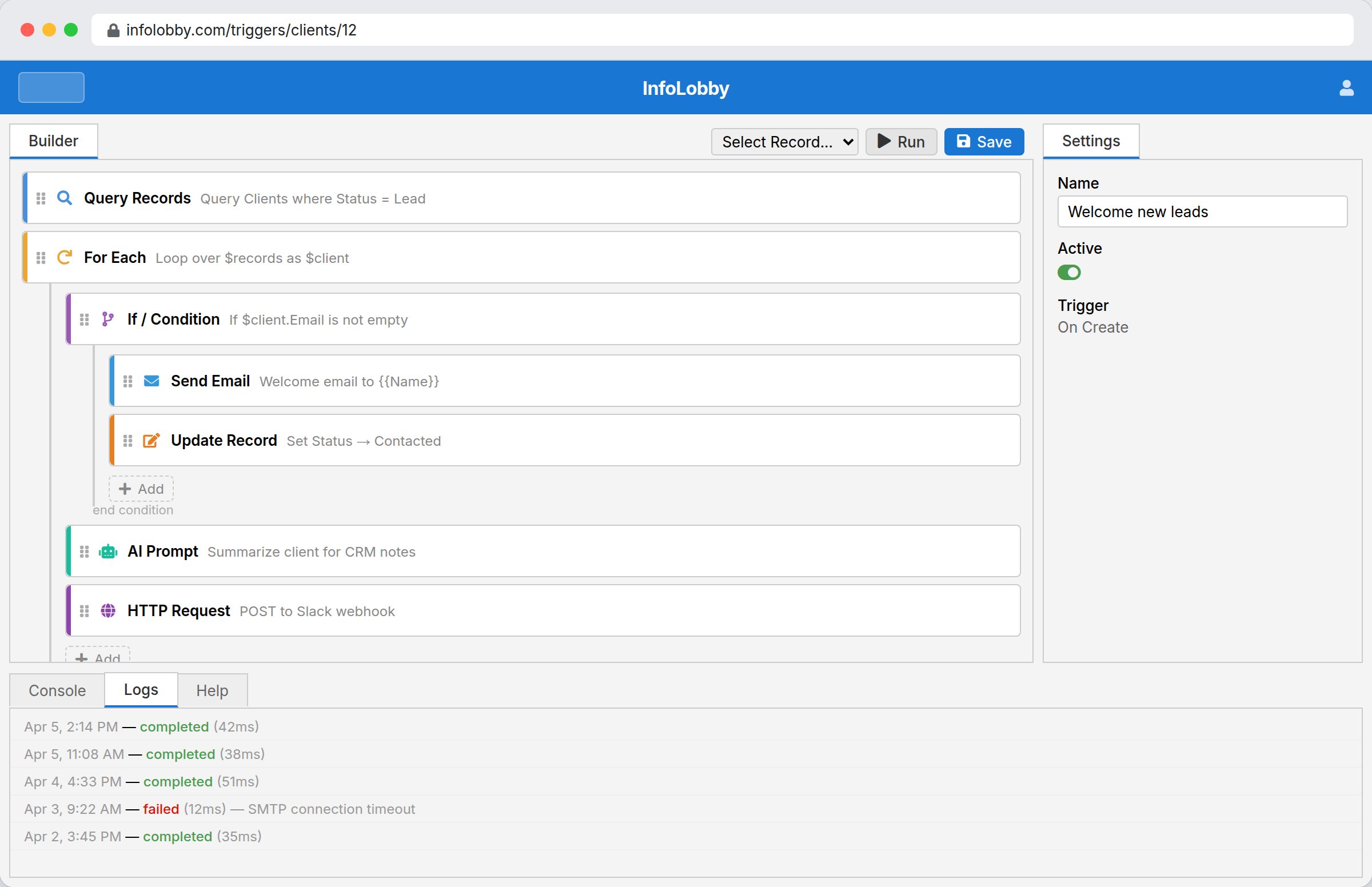
Trigger types
| Trigger | Runs when |
|---|---|
| On Create | A record is created in InfoLobby or through a web form |
| On Update | A record is updated in InfoLobby |
| On Delete | A record is deleted in InfoLobby |
| On Schedule | A configured time arrives |
| On Demand | You run it manually |
| On Webhook | A GET or POST request hits the trigger URL (runs in the background) |
| On Web Page | Someone visits the flow's public page URL — the flow runs immediately and returns an HTML page |
Finding automations
Each table's automations page lists that table's automations. The search box filters the list as you type.
Tick All flows to search across every workspace you administer — results show each automation's workspace and table, so you can jump straight to it without remembering where it lives.
Build options
Use the visual builder for common workflows: conditions, loops, record actions, email, HTTP requests, and AI prompts.
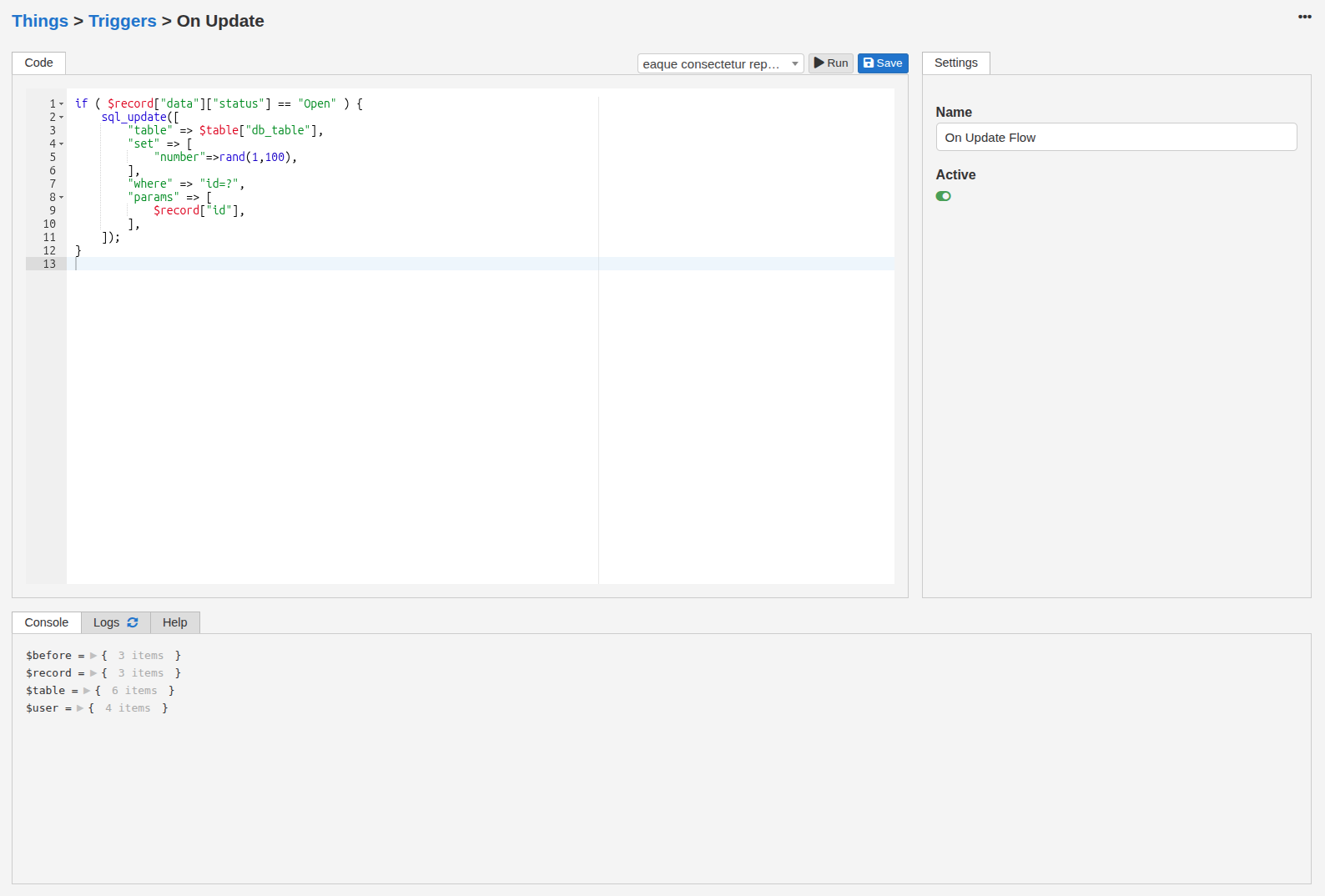
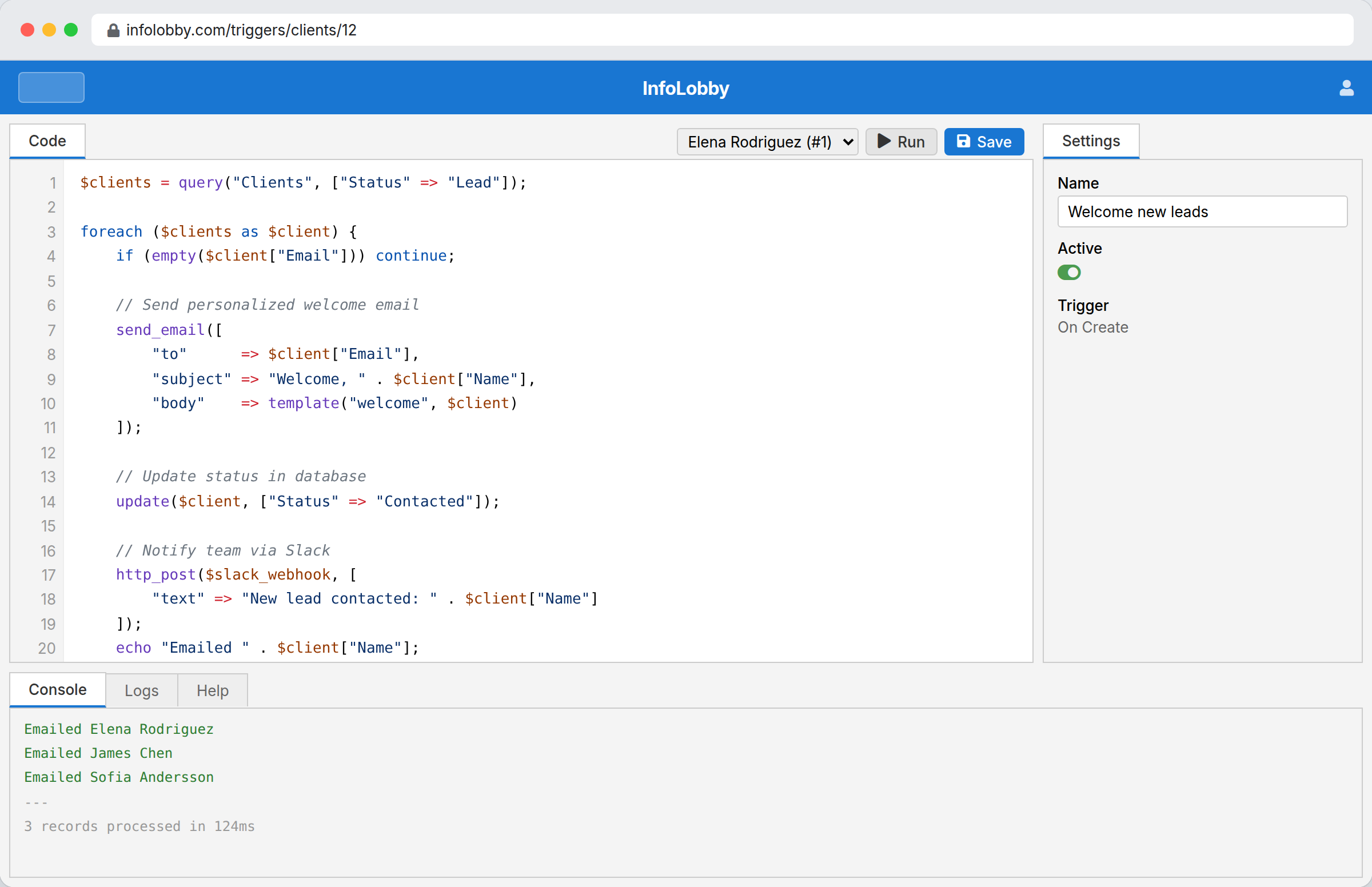
Use PHPScript — InfoLobby's code language — when you need full control. See the PHPScript reference for the language basics and every built-in function.
Visual builder steps
| Category | Step | What it does |
|---|---|---|
| Data | Query Records | Fetch records from a table into a collection variable. Tick Return single record to get one record instead of a collection — handy when you expect exactly one match (e.g. the current financial year). The step then errors if nothing matches, and you can use the record's fields directly without a loop. |
| Data | Get Records From View | Fetch records through a saved view on a table |
| Data | Get Record | Fetch a single record by ID |
| Data | Get Related | Fetch records from a related table for a selected source record |
| Logic | Set Variable | Assign a value to a variable (written in a code editor with syntax highlighting, autocomplete, and token support) |
| Logic | Set HTML Variable | Assign a rich-text/HTML value (edited in a visual editor, tokens supported) to a variable |
| Logic | For Each | Loop over a collection |
| Logic | If / Condition | Branch based on a condition (with optional else). On record-update flows you can also test whether a field changed or changed to a specific value. Single dropdown/select fields compare like ordinary values; multiple select, user, and lookup fields use contains, doesn't contain, or changed and contains to test whether a value is one of those held. An Assign Task action pointed at a multiple user field creates one task per assigned user. |
| Logic | Stop Flow | Halt execution with optional reason |
| Logic | Comment | A note to document your flow. Does nothing when the flow runs — it just makes the flow easier to read. Shown as a highlighted note in the step list. |
| Actions | Create Record | Insert a new record |
| Actions | Update Record | Modify an existing record |
| Actions | Delete Record | Remove a record |
| Actions | Add Comment | Post a comment on a record (added as the system user) |
| Actions | Generate PDF | Render HTML content (with a file name, optional header/footer, orientation, and page size) to a PDF and append it to a record's file field. Your HTML can use the built-in fonts — including a signature script font (Alex Brush) — by setting font-family (e.g. <span style="font-family:'Alex Brush'">); the same fonts also render in rich-text fields and web pages |
| Actions | Send Email | Send via SMTP connection. Optionally pick a From sender from the connection's configured identities (defaults to the connection's first identity). Optionally link it to a record — the email is then logged on that record's comment thread and replies thread back, and you can attach the record's files matching a pattern (e.g. *.pdf). |
| Actions | HTTP Request | GET/POST/PUT/PATCH/DELETE to a URL, with custom headers (one Name: Value per line, tokens supported) and a JSON / form-encoded / raw request body |
| Actions | API Request | Like HTTP Request, but authenticated through a saved API integration (HTTP Basic, Token/Bearer, or OAuth2). Pick the connection — auth and OAuth2 token refresh are handled for you, so no credentials live in the flow. The URL can be absolute, or relative to the connection's base URL. Saves the same response object as HTTP Request |
| Actions | AI Prompt | Send a prompt to OpenAI |
| Actions | Assign Task | Create a task and assign it to someone. Pick the Assign to person from your workspace members, or use the {{user.email}} token to assign it to whoever triggered the automation. Set a title, optional details, and an optional due date or date-and-time (a due time is treated as UTC, matching record date-and-time fields — use a record date-and-time field token for it). Optionally link it to a record so the task shows up on that record. The task is created on behalf of the person who triggered the flow; on scheduled/webhook runs with no signed-in user it is owned by the assignee instead, and the assignee is still notified. |
| Actions | Log Message | Write to the flow log |
| Actions | Execute Flow | Run another on-demand flow. Pick the Workspace / Table the target flow belongs to (tables you've added under Additional Workspace Access appear here too), then the Flow. Passing a Record is optional — leave it empty to run the flow with no record, or pick a single-record source (e.g. Get Record, or a Query Records with Return single record checked). Optionally bubble up errors from the called flow. |
| Actions | Web Page | (web page flows only) The HTML this page returns, edited in a visual editor with token support. Every web page flow has at least one. |
Tokens
Inside the visual builder, use {{record.fieldName}} to reference the trigger record's fields. For update triggers, {{before.fieldName}} gives the previous value. Single user fields also expose .id, .email, and .name tokens, and single lookup fields expose .id and .title. A multiple field (several users or several linked records) holds a list — when you drop its token into text (an email body, a message), the values are joined automatically (e.g. Alice, Bob); when the token is the whole value of a field assignment, the full list is passed through.
Tip: in any token field, just type {{ and a picker pops up — keep typing to filter, use ↑/↓ to choose, Enter to insert, Esc to dismiss. (The </> button next to the field opens the same picker.)
Webhook and web page triggers have {{webhook.get}}, {{webhook.post}}, {{webhook.headers}}, {{webhook.body}}, and {{webhook.ip}} (the caller's IP address). Webhooks additionally have {{webhook.host}} (the caller's reverse-DNS hostname, empty when none) — this is omitted on web pages to keep page loads fast. Use dotted keys like {{webhook.get.foo}} for a query parameter, or bracket access like {{webhook.get}}["foo"].
The person who triggered the automation is available as {{user.id}} and {{user.email}} — handy for assigning a task or addressing an email to them.
Current date and time in the workspace owner's timezone: {{now.date}}, {{now.datetime}}, {{now.time}}, {{now.timezone}}. The matching UTC tokens — {{now.date_utc}}, {{now.datetime_utc}}, {{now.time_utc}} — give the same instant in UTC; use these when writing into a record date/datetime/time field, since those fields are stored in UTC. See Dates, times, and timezones for which token to use where.
Variables from prior steps are available as {{varName}} (scalars) or {{varName.fieldName}} (objects/loop items).
Link to another flow's URL. To reference the public address of a webhook or web page flow, use {{flow_url:<id>}} — pick the flow from the token list (under Flow URLs) rather than pasting its /webhook/… or /page/… link. This resolves to the live URL when the automation runs, so the link keeps working even after the workspace is copied or installed elsewhere (a pasted link would point at the original flow). Common uses: a record automation that emails a signing-page link, or a web page that posts back to a webhook flow.
Testing without side effects
While building, you can test-run a flow from the editor to check its logic. A test run executes the real steps — so a flow that creates records, sends email, or calls an external service will actually do those things.
To try a flow safely, tick the small skip checkbox (next to the trash icon) on any action step that makes a change — Create / Update / Delete Record, Add Comment, Send Email, Generate PDF, HTTP Request, API Request, AI Prompt, Assign Task, or Execute Flow. During a test run a skipped step doesn't perform its action; instead it logs exactly what it would have done (its resolved values), so you can verify the rest of the flow without touching live data or sending anything. Skip has no effect on live runs — leave the boxes ticked while iterating and the flow still works normally once it's active. (Read-only and logic steps don't have the checkbox, since skipping them would just break the steps that follow.)
Error alerts
When an automation fails, admins see a warning icon () in several places:
- Workspace overview — next to the workspace name and the table name
- Table grid view — next to the table name (click to go to automations)
- Automations list — next to the flow name
- Flow editor — an error panel in the settings tab shows the last error time and details
To clear the error, open the flow editor and click Clear Error, or save the flow. Fixing and re-saving the automation automatically clears the alert.
Only active flows are counted — deactivated flows with errors do not show alerts.
Web page flows
An On Web Page flow serves a public web page. When someone visits its page URL, the flow runs right away and returns whatever HTML it produces — so you can build dynamic pages backed by your tables (status pages, dashboards, confirmation pages, simple microsites).
- The settings panel shows a Public Url (
/page/…) once you save. Anyone with the link can load the page; mark the flow Active to make it live. - Build the page with the Web Page step — a visual HTML editor with token support. Run query/logic steps before it to pull in data, then reference the results with tokens. Every web page flow keeps at least one Web Page step; you can add more and their output is joined in order.
- Incoming query string, post data, headers, body, and caller IP are available as
{{webhook.get}},{{webhook.post}},{{webhook.headers}},{{webhook.body}},{{webhook.ip}}(same as webhooks).{{webhook.host}}is webhook-only (skipped here to keep page loads fast). - If your HTML is a fragment, InfoLobby wraps it in a minimal page; if you output a full
<!doctype html>document it's returned as-is. - To protect shared infrastructure, page loads are rate-limited per account based on your plan; bursts beyond the limit briefly return a "too many requests" response.
Multi-workspace access
In the flow settings panel, you can grant a flow access to tables in other workspaces where you are an admin. This lets you query or modify data across workspaces.
Moving a table to another workspace
When you move a table to a different workspace, its own automations move with it. Before the move you'll see a summary of any automations that need updating:
- Auto-updated — visual automations that reference the table are automatically granted access to the workspace involved, so they keep working. (This widens their workspace access — anyone who can edit them can then reach data there.)
- Needs review — code automations (PHPScript) can't be updated automatically, and automations in a workspace you don't administer are left untouched. Open these and fix any table references by hand.
Tables can only be moved between workspaces in the same database and the same account. If the table has file fields, the target workspace must have file storage that matches the source's — otherwise the move is blocked so your files aren't orphaned. When a file table moves, its stored files are re-tagged to the new workspace (shown with a progress bar).
PHPScript
When the visual builder isn't enough, write your automation in PHPScript — InfoLobby's code language. It covers records, querying, comments, files, email, HTTP and API calls, AI, dates, tasks, and more.
See the dedicated reference:
- PHPScript overview — what it is and a full function index
- PHPScript basics — the language: variables, control flow, arrays, record shapes
- Function pages with parameters, samples, and example output — e.g. records_query(), record_update(), curl_request(), task_assign(), openai_gpt()
Silent actions (no follower notifications)
The Create Record, Update Record, Delete Record, Add Comment, and Generate PDF actions each have an optional Silent checkbox. Check it when a flow makes routine or bulk changes that shouldn't notify the people following those records — the change is still made and still recorded in activity history, but record followers get no notification for it.
Silent only mutes notifications to followers. People you @mention in a comment, users newly assigned to a record via a user field, and task assignees are still notified.
In PHPScript, pass ["silent" => true] as the final argument: record_update("orders", $id, ["status" => "done"], ["silent" => true]). The same opts argument works on record_create, record_delete, record_comment, and pdf_generate.